

Losing important photos, videos, or conversations on WhatsApp can be very frustrating, especially when the content includes personal memories, receipts, documents, or work-related messages.
Many people only realize the importance of backups after changing phones, deleting a chat by mistake, or reinstalling the app without checking their saved data.The good news is that, in some cases, it may still be possible to recover part of the lost files. To do this, it is important to stay calm and check the right options before assuming that everything is gone forever.
In this article, you will see the main practical solutions to try to recover deleted WhatsApp photos, videos, and conversations, as well as important tips to avoid losing your files again.

Check if the Files Are Still on Your Phone
Before trying more advanced methods, check whether the photos and videos are still saved on your device. In many cases, the conversation was deleted, but the files remain in the phone gallery or internal folders.
Look in:
- Photo gallery;
- Photos app on iPhone;
- File manager on Android;
- WhatsApp images and videos folder;
- Downloads and recent documents.
This should be one of the first steps because, in many cases, the media had already been downloaded before the chat was deleted.
Check if There Is a WhatsApp Backup
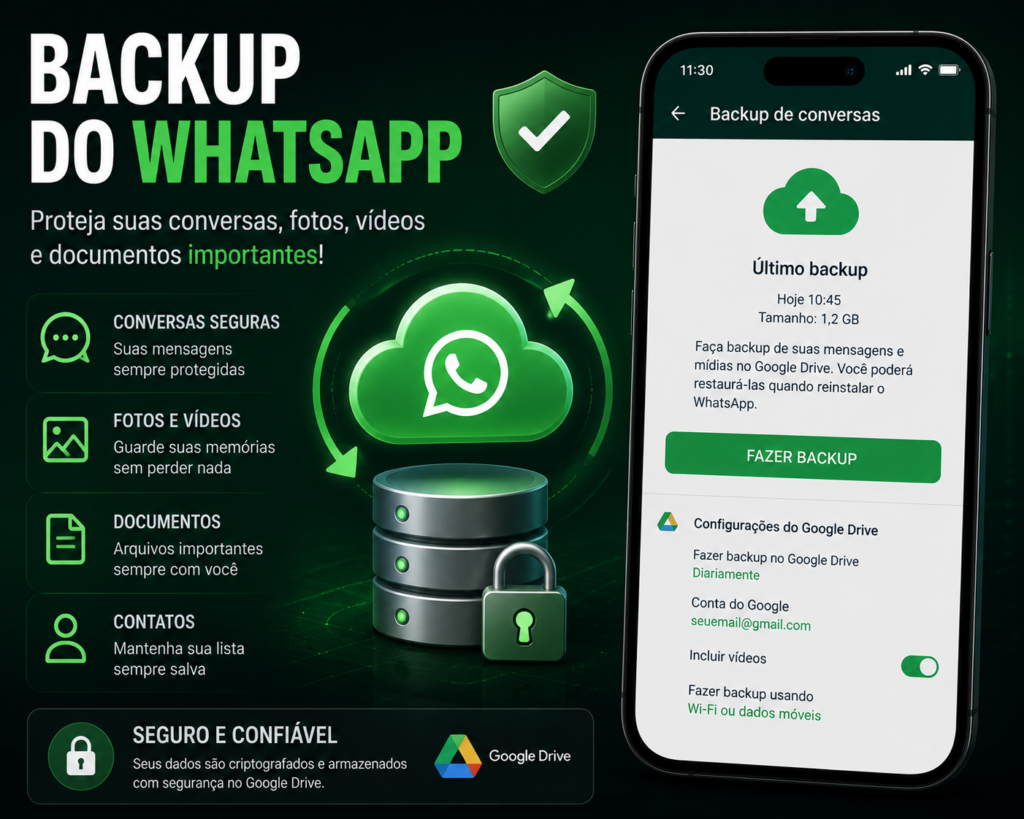
Backup is the main way to recover deleted conversations. On Android, it is usually saved to a Google account. On iPhone, it is linked to iCloud.
Before reinstalling WhatsApp, check:
- if there is an available backup;
- the date of the last backup;
- if you are using the same phone number;
- if the Google or iCloud account is correct;
- if there is enough storage space on your phone;
- if your internet connection is stable.
An important detail: avoid creating a new backup after deleting important conversations, as this may replace the old backup with a version that no longer contains the lost files.
Restore WhatsApp from a Backup
If there is an available backup, the most common method is to uninstall and reinstall WhatsApp. During setup, the app may offer the option to restore your chat history.
The basic process is:
- Check if there is a saved backup;
- Uninstall WhatsApp;
- Install it again;
- Confirm the same phone number;
- Tap restore when the option appears;
- Wait for the process to finish.
This method may recover conversations, groups, and some media files, depending on the backup date and quality.
See if Photos and Videos Return After Restoration
After conversations are restored, some media files may take a while to appear. For this reason, keep your phone connected to Wi-Fi and wait for WhatsApp to load the files.
To increase your chances:
- use a stable connection;
- do not close the app during restoration;
- keep enough free space on your phone;
- wait for media files to download;
- check your gallery again.
If the files do not return, they may not have been included in the backup or may no longer be available for download.
Be Careful with “Miracle” Apps
There are many apps that promise to recover any deleted WhatsApp message, photo, or video. You need to be careful because not all of them are safe.
Be suspicious of promises such as:
- “recover everything in seconds”;
- “see deleted messages from anyone”;
- “access conversations without backup”;
- “recover any lost file.”
Some apps may request risky permissions, access personal data, or compromise your privacy. Always prioritize official methods and reliable tools.
What to Do When the Backup Does Not Appear
If WhatsApp does not find your backup, check a few important points:
- are you using the same phone number?
- is the Google or iCloud account correct?
- is there enough free space on your phone?
- is WhatsApp updated?
- is your internet working properly?
- is the backup protected by a password?
Many restoration problems happen because the person is using a different cloud account or because the phone does not have enough storage space to restore the files.
How to Avoid Losing Files Again
After recovering or trying to recover your conversations, the most important step is prevention.
Do this:
- enable automatic backup;
- choose daily or weekly backup;
- confirm which account is used for backup;
- save important photos to your gallery too;
- avoid aggressive cleaning apps;
- keep free space on your phone;
- before changing devices, create a manual backup;
- safely store your encrypted backup password.
For very important files, do not rely only on WhatsApp. Save copies in Google Drive, iCloud, your computer, or another secure location.
Lost photos, videos, and conversations on WhatsApp are not always gone forever. Before panicking, check your gallery, phone folders, WhatsApp backup, and the cloud account connected to your device.
Recovery mainly depends on whether a backup exists and when it was created. That is why acting quickly and avoiding overwriting an old backup can make a big difference.
The best solution is to combine recovery and prevention: keep your backups active, save important files outside WhatsApp, and be careful with apps that promise impossible results.